TL;DR
- Clear four things before switching: active subscriptions, account balance, pending bills, Family Sharing.
- iPhone/iPad path: Settings -> Apple Account -> Media & Purchases -> View Account -> Country/Region.
- Mac path: App Store -> Account Settings -> Country/Region; Web path: music.apple.com -> Account Settings.
- Payment method must match the target storefront, otherwise checkout or renewal will fail.
- On renewal day, first check if the charge went through, then verify payment + storefront match, then confirm the current price is still worth it.
Step 1: Pre-Flight Checklist
Before touching the Country/Region option, clear these four items or Apple will block the switch:
- Cancel or note the renewal dates of all active auto-renewable subscriptions - they won't auto-migrate after switching.
- Spend or refund the remaining Apple ID balance, and resolve any unpaid orders.
- Confirm a valid payment method for the target region (some regions allow no-payment registration, but subscriptions need a valid method).
- Review Family Sharing impact - switching may change how subscriptions are shared with family members.
Step 2: iPhone / iPad Region Change Path
iPhone and iPad share the same 8-step path. Each step has a screenshot; iOS versions may differ slightly:
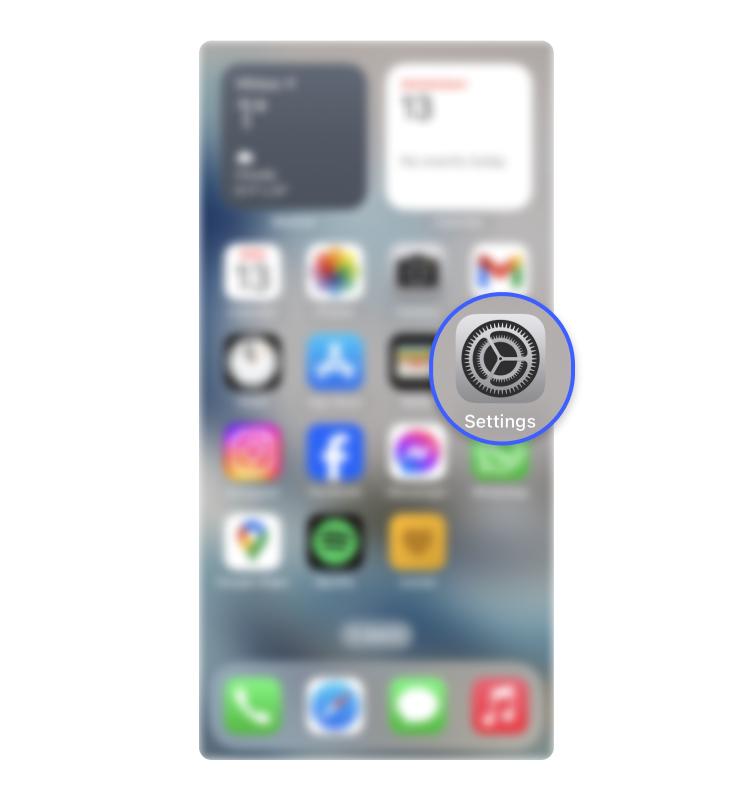
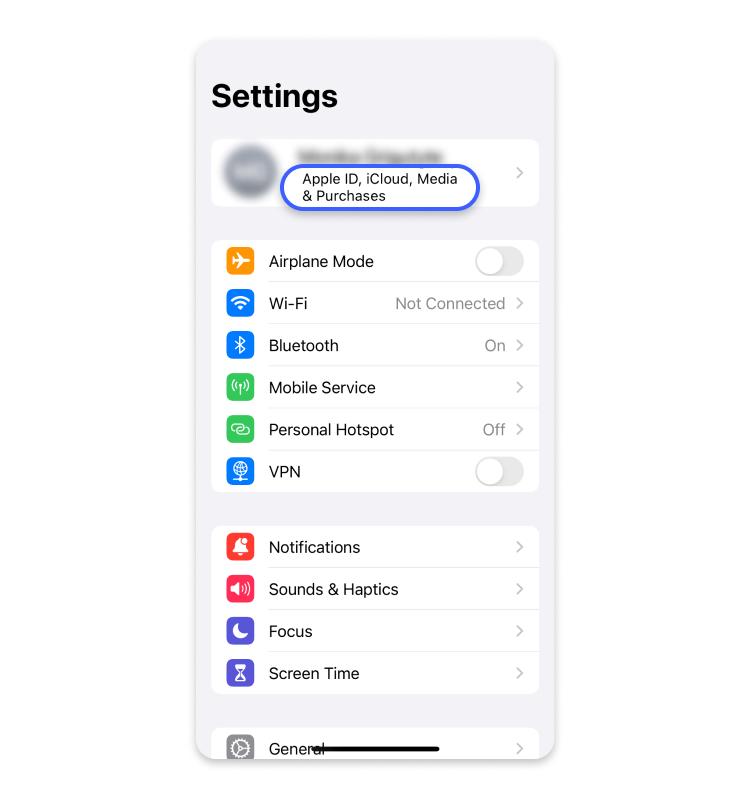
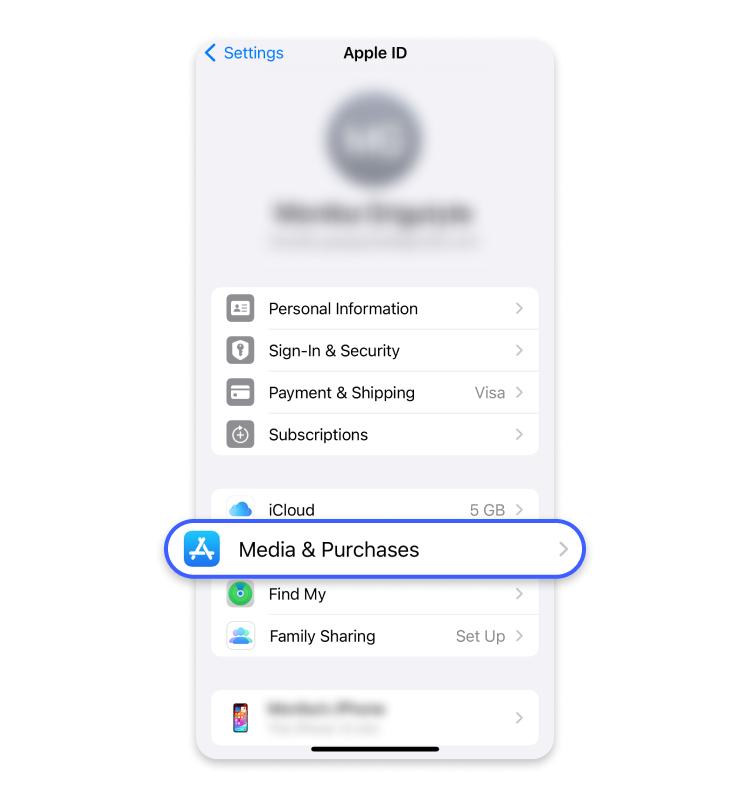
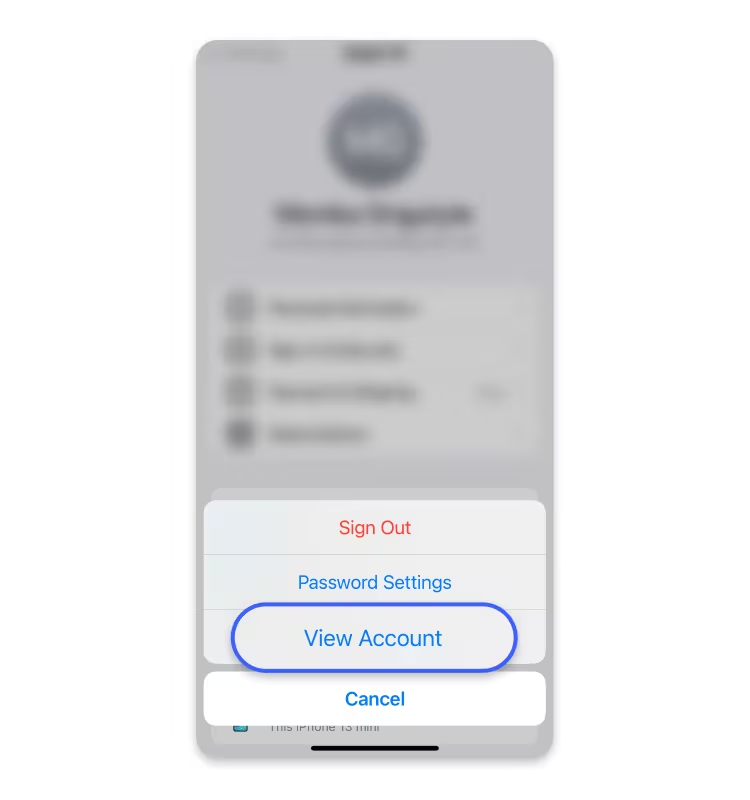
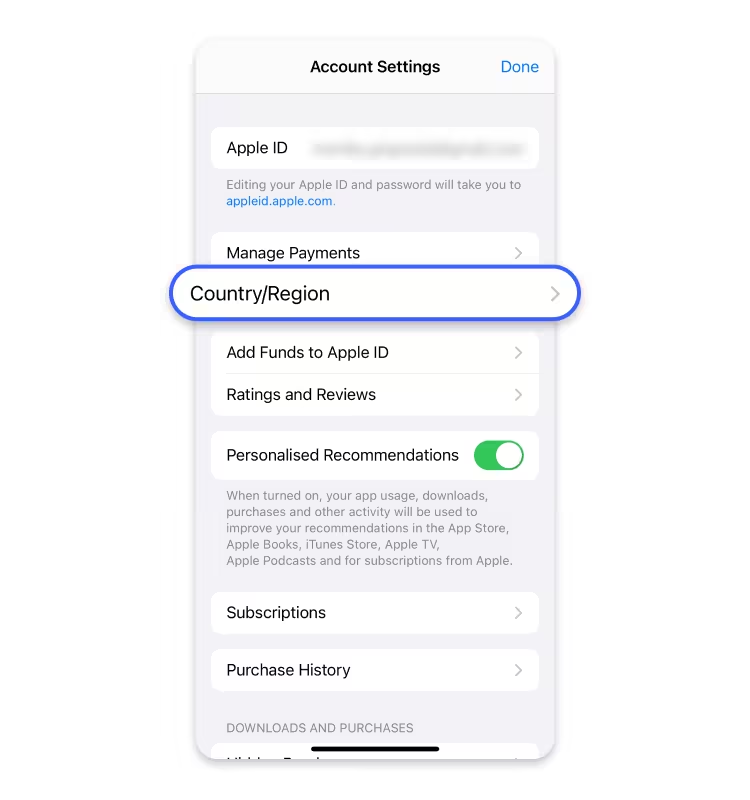
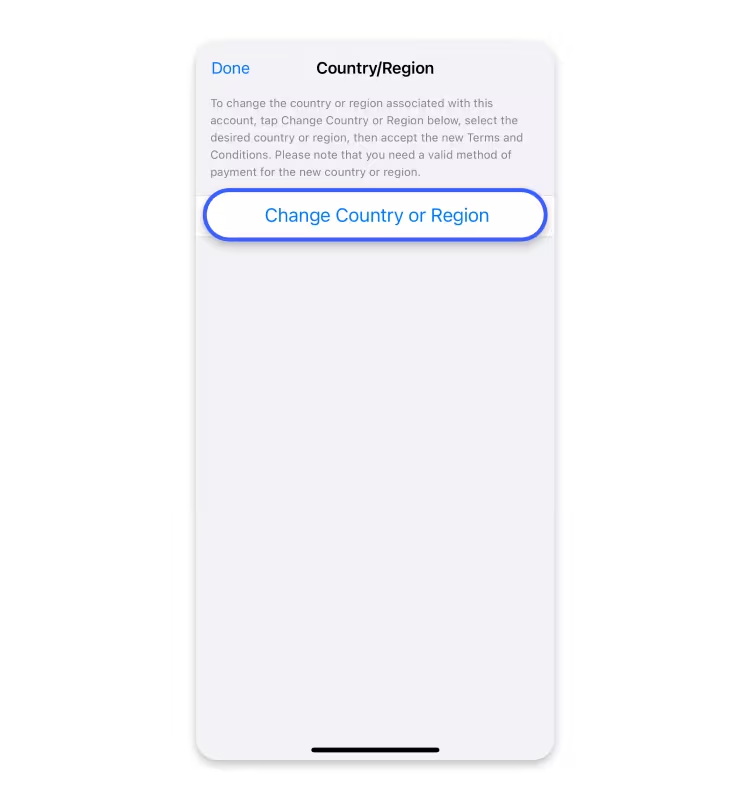
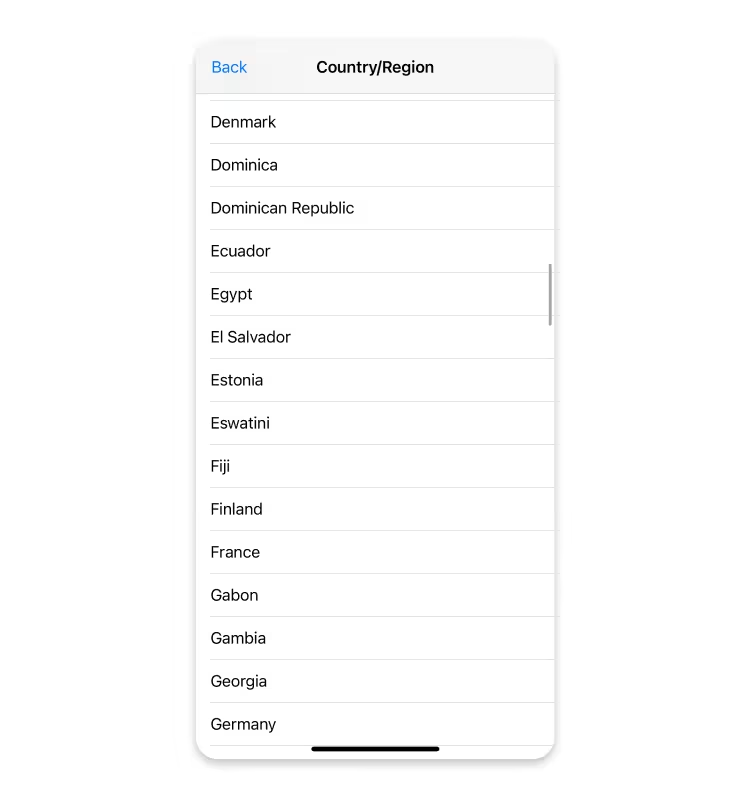
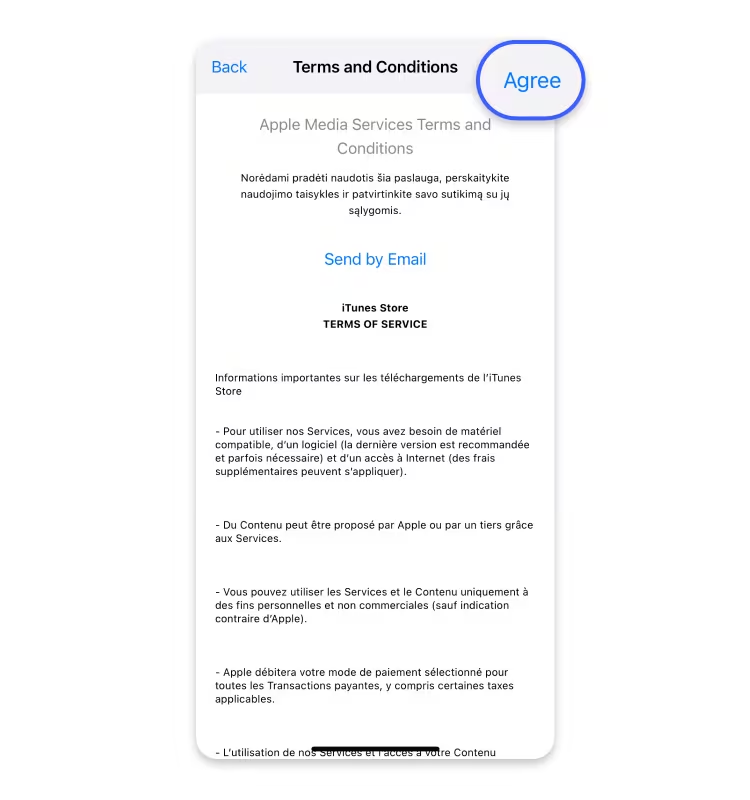
Screens may vary slightly by iOS version, but the path order is the same.
Step 3: Mac Region Change Path
On Mac you don't need System Settings - change it directly in App Store:
- 1Open App Store and click your profile at the bottom-left.
- 2Go to Account Settings (you may need to authenticate again).
- 3Find Country/Region and click Change Country or Region.
- 4Confirm the new billing address and payment method, then save.
Step 4: Web Region Change Path
Fallback path when you don't have a Mac or iPhone, via Apple's web account manager:
- 1Open music.apple.com in a browser and sign in.
- 2Go to Account Settings.
- 3Find Country/Region and click Change.
- 4Review the new payment method requirements and save.
Step 5: Payment Method Match
After switching, the payment method must match the current storefront country/region, otherwise checkout and renewal will fail.
A common approach is to top up with a gift card issued in the target region to bypass card-region restrictions; you can also use a credit/debit card issued in the target region.
Common blocker
"Region changed but payment method stayed from the previous storefront" - this is the top cause of failed switches. Apple verifies payment-method-to-storefront consistency at every renewal; a mismatch means the charge is rejected.
Step 6: Renewal-Day Decision Flow
Switching isn't a one-time thing. Walk through this decision tree on every renewal day:
- 1Did the renewal charge go through? Yes: keep the setup. No: move to the next step.
- 2Is there a billing issue? Check if the payment method is still valid and matches the storefront.
- 3Is the current price still worth it? Verify the app's live price in the target region to confirm it hasn't been hiked.
Before retrying, verify: next billing date, current storefront country, and payment method status.
Official Apple References
Below are Apple's official support docs. Cross-check before switching to confirm the latest policy:
- Change your Apple ID country or region - support.apple.com/en-us/118283
- Payment methods you can use with your Apple ID - support.apple.com/en-us/118429
- Manage subscriptions on your Apple Account - support.apple.com/en-us/118428
- Apple Media Services Terms & Conditions - apple.com/legal/internet-services/itunes/us/terms.html
FAQ
What happens to existing subscriptions after I switch regions?
Existing auto-renewable subscriptions don't auto-migrate to the new region. You'll need to resubscribe in the new region or cancel before switching. Apple recommends resolving all active subscriptions before switching.
Will I lose apps I've already purchased?
No. Purchased apps stay tied to your Apple ID, and you can redownload them from Purchased. But some apps may be unavailable in the target region and won't get updates there.
Is there a limit on how often I can switch?
Apple doesn't publish a hard limit, but frequent switching may trigger risk control. Decide on a target region before switching, and avoid flip-flopping in a short period.
Can I pay for renewals with gift card balance?
Yes. After topping up with a gift card issued in the target region, Apple will deduct from the balance first, bypassing card-region restrictions. This is one of the most reliable renewal methods.
Does Family Sharing still work after switching?
Switching removes you from the current Family Sharing group. To rejoin, the organizer must invite you again, and the organizer's region must be compatible.
Is switching via the Web the same as via iPhone?
Yes. All three paths (iPhone/iPad, Mac, Web) modify the same Apple ID country/region field. Use whichever device is most convenient.
Next Steps
- Run through the Step 1 checklist to confirm you meet the pre-flight conditions.
- After picking a target region, use LowestAppPrice to check live app prices there versus your current region, and confirm the switch is worth it.
- Follow the path for your device, and prepare the target-region payment method or gift card.
Reminder: region switching is an Apple-supported feature, but always cross-check Apple's official docs before operating - policies may update.